Design.com vs. Canva vs. Adobe [2026]: Which Is Best for Launching a Business?
Starting a business requires a clear visual identity, but choosing the right logo maker and design platform can be confusing. Founders often struggle to decide between dedicated brand-building platforms like Design.com, template-heavy content hubs like Canva, and professional design suites like Adobe Express or Creative Cloud.
This guide evaluates all three options to help you choose the best platform for your new business.
Quick verdict
Before we go deeper on each platform, here’s a quick take for busy founders:
Design.com: Best for day 1 launches
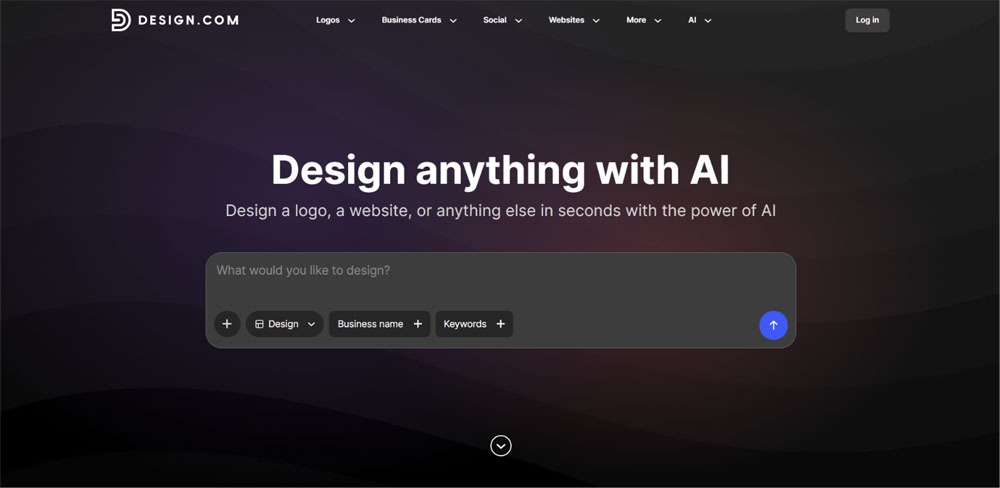
Design.com is built for entrepreneurs who need an instant, complete brand identity system. You get vector logos, brand guidelines, business cards, and a matching website domain without touching a single design coordinate.
Canva: Best for day 30 marketing
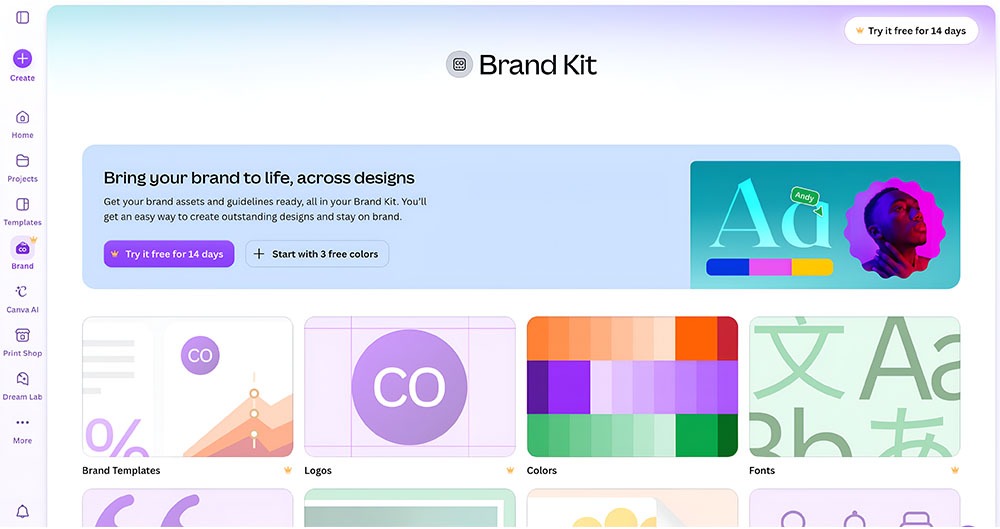
Canva is the undisputed champion for solopreneurs who already have a logo and need a fast, template-rich visual engine for daily social media graphics, presentation decks, and ad creatives.
Adobe Express: Best for Adobe ecosystem integrations
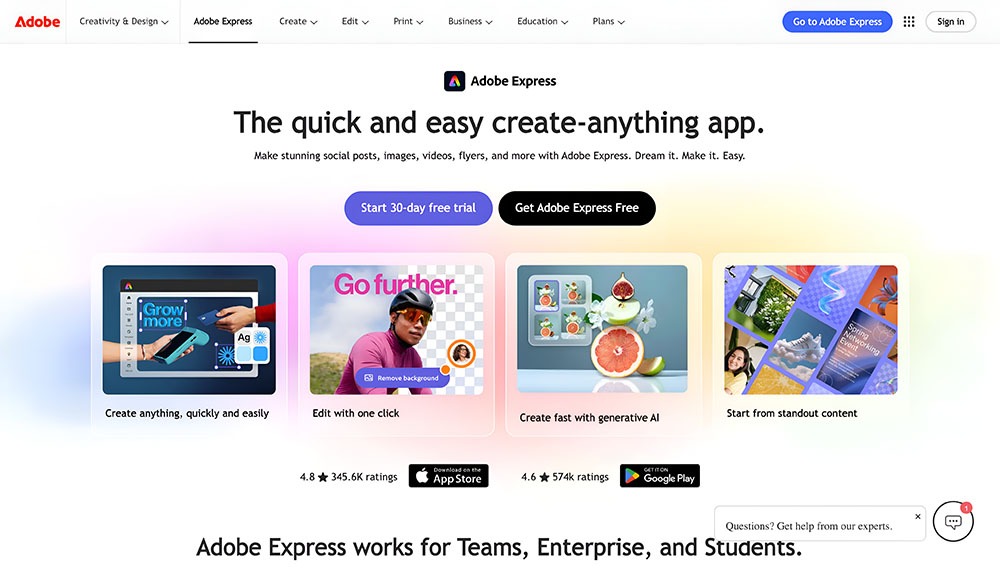
Adobe Express is the natural pick for creators who want commercially safe Firefly AI generation, access to Adobe Stock assets, and quick design tools that connect directly to Photoshop or Illustrator workflows.
At-a-glance: Feature and capability matrix
To help you quickly evaluate which tool best aligns with your immediate launch priorities, we put all three platforms side by side. The matrix below breaks down key strengths, individual workflow test results, export permissions, and starting costs.
| Feature / Capability | Design.com | Canva | Adobe Express |
| Key strength | Automated brand system creation | Drag-and-drop social marketing | Commercially safe AI and Adobe stock depth |
| Logo generation | Brief-based AI engine | Limited, template-based generator | Step-by-step wizard (preset layouts) |
| Editor flexibility | Natural-language AI chat editor | Full open-canvas drag-and-drop | Preset swatches and fixed cards |
| Brand kit expansion | Automatic (Business cards, web, app, print) | Manual setup across templates | Limited |
| Daily content engine | Streamlined brand guardrails | Industry leader (Templates and scheduler) | Strong Firefly AI and Adobe Stock integration |
| Vector file exports (SVG, EPS) | Yes, included on all plans (including Free) | Pro plan only | Premium plan only |
| Entry price | Free plan; Starter from $3/mo | Free plan; Pro from $18/mo | Free plan; Premium from $9.99/mo |
Workflow test 1: Day 1 — Building an authentic brand identity from scratch
The Challenge: You need a logo that does not look like generic clip art, along with proper vector file exports and legal rights for future trademarking.
How they play out in real time
Design.com treats a logo as the anchor of a larger business ecosystem. Instead of making you start on a blank canvas, its brief-based AI engine generates thousands of tailored concepts based on your business name and style keywords.
For example, we prompted Design.com to create logos for a boutique coffee roastery called Cozy Brew Haven using the style keywords warm, modern, and minimalist.
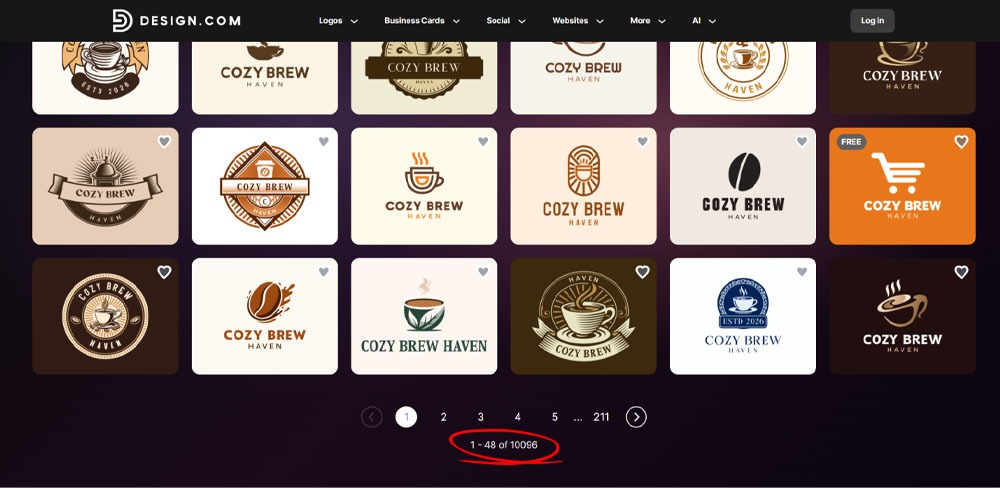
The platform instantly generated over 10,000 distinct logo concepts matching our exact criteria. Most drafts looked polished and well-balanced right out of the box, requiring minimal manual editing.
Crucially, Design.com provides scalable vector files (SVG and EPS) directly on its free plan, ensuring your logo can scale up to billboard size without losing crispness or pixelating.
Canva, meanwhile, makes it easy to jump into logo creation, but it relies heavily on a template-driven editor with around 5,000 logo presets. In head-to-head testing, we ran the same Cozy Brew Haven brief through Canva, and it generated four initial logo options.
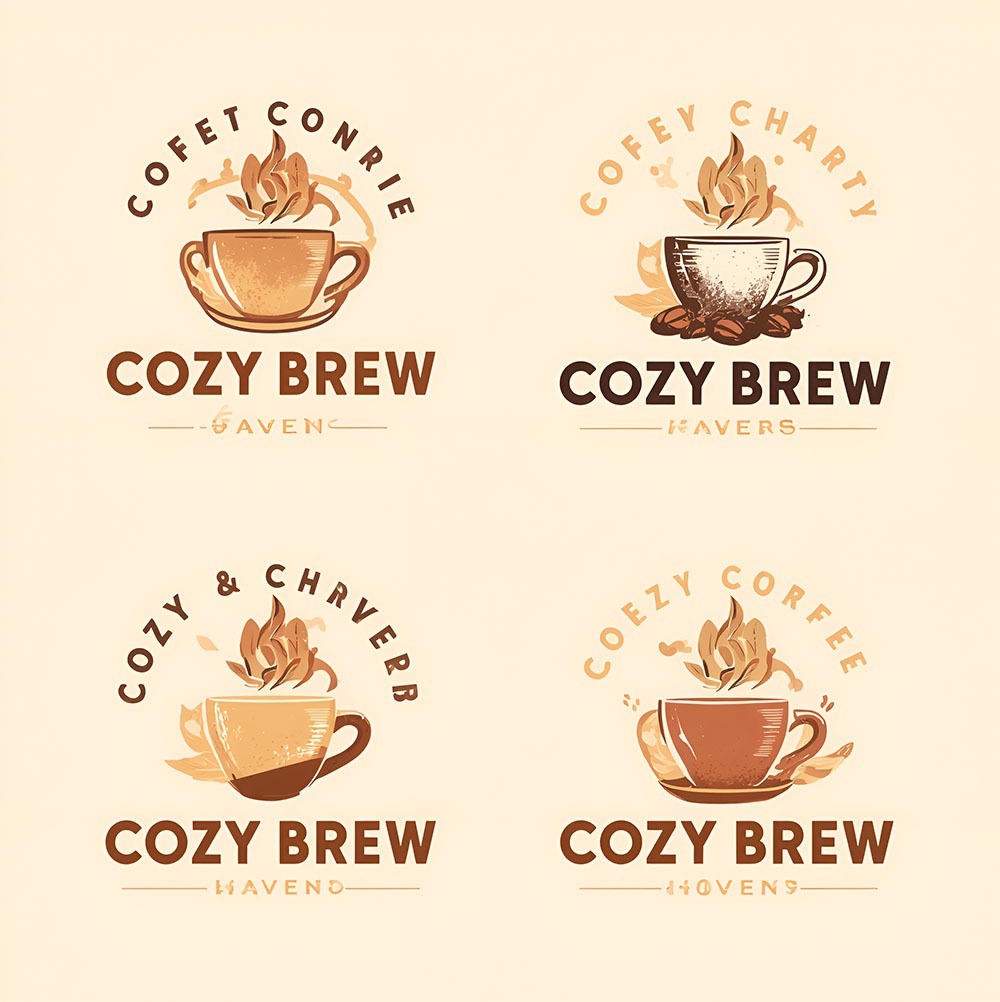
While these drafts looked clean, they functioned more like minor variations of a single template than distinct creative directions. More importantly, under Canva’s licensing terms, if your logo relies on standard stock graphics or pre-existing templates, you generally cannot register it as an exclusive trademark. It works well for a quick side-project mockup, but carries long-term legal risks for a flagship business.
Adobe Express is the most limiting of the three when it comes to initial logo creation. Instead of generating concepts from an open brief or providing a free-form canvas, it walks you through a rigid step-by-step sequence: Name > Icon > Layout > Edit.
Here are a couple of the initial logo concepts generated for Cozy Brew Haven:
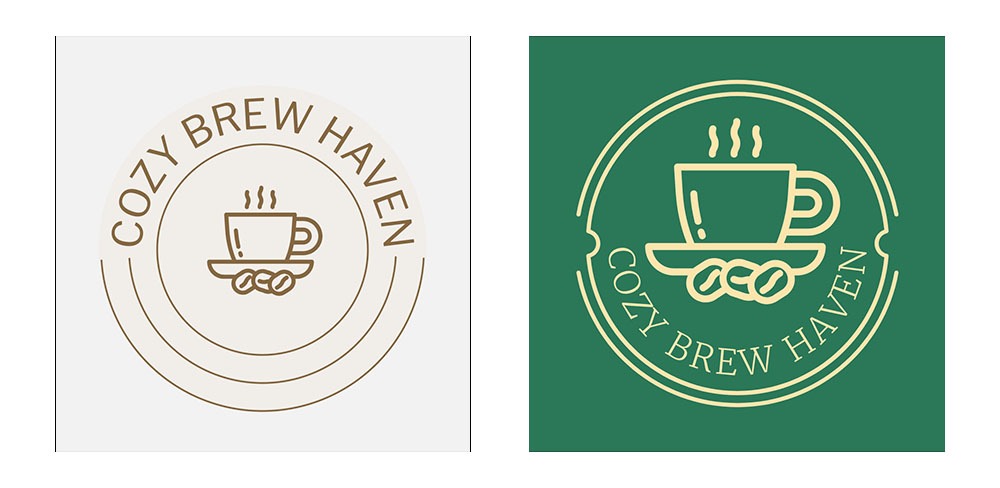
While the interface is clean and backed by Adobe Firefly AI, the logo template library remains somewhat limited. As a result, the initial outputs lean heavily on simple icon-and-text pairings, making the finished logos feel closer to a basic fill-in-the-blanks template exercise than a custom brand mark.
Furthermore, downloading scalable vector SVG files requires upgrading to Premium, leaving free users with standard raster exports.
Test 1 Verdict: Design.com wins for Day 1 launches. It eliminates blank-page anxiety and generates a fully realized, legally protected logo with native vector rights in a single flow.
Workflow test 2: Editing control and natural-language tweaks
The Challenge: Once a first draft is generated, how fast and intuitive is it to customize colors, fonts, layouts, and icons?
How they play out in real time
Design.com offers intuitive manual controls over typography, colors, and layout, but its standout feature is a natural-language AI chat editor. Instead of hunting through nested toolbars, you can type natural-language requests like “make the icon rounder” or “use a bolder font for the text,” and the AI applies the change directly.
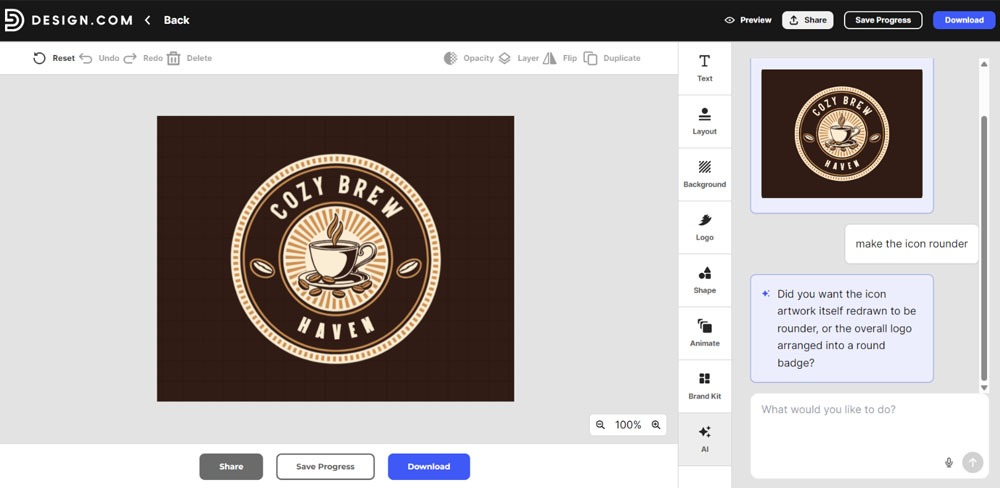
This conversational editing model eliminates the learning curve for non-designers, allowing you to refine your visual identity in seconds without taking a crash course in layout tools.
Canva provides a full open-canvas drag-and-drop editor. Because it operates as a multi-purpose design workspace, you have full manual control over layers, alignment, positioning, and graphic elements.
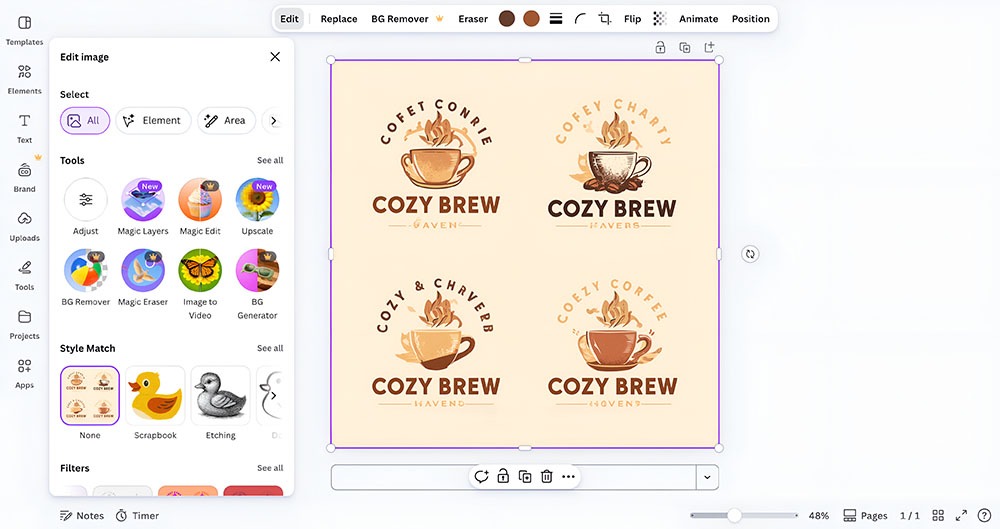
It gives experienced users complete visual freedom, though tweaking every icon and typography choice requires manual adjustments across individual canvas elements.
Adobe Express remains the most restrictive editor of the three. Rather than opening up a free-form canvas or offering conversational AI controls, it locks customization options into fixed preset cards at the final step of its wizard flow.
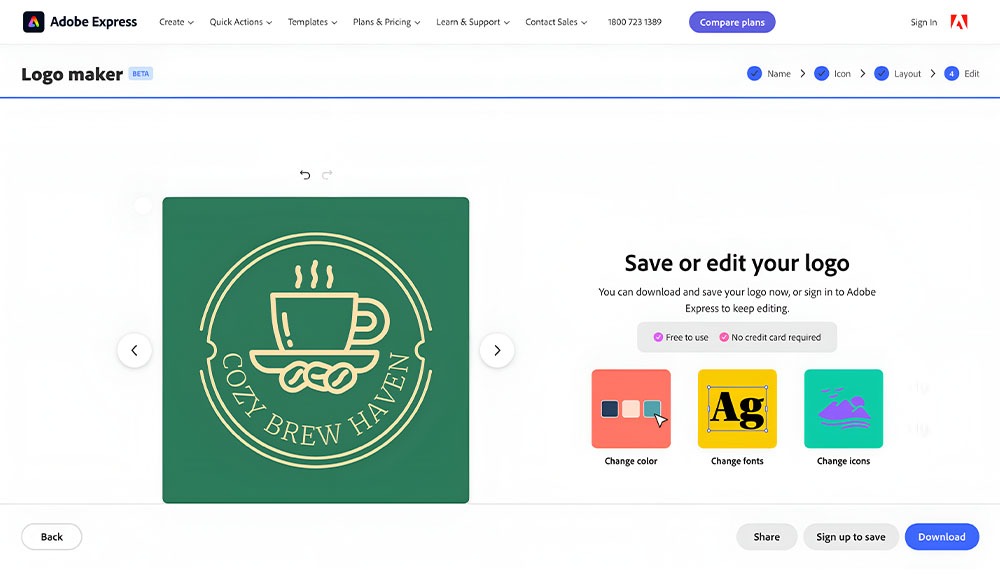
As shown in the editor view, customizing your logo is restricted to clicking fixed preset swatches for color, font, or icon replacements. This makes fine-tuned layout adjustments or custom icon alignment almost impossible without leaving the logo maker entirely.
Test 2 Verdict: Design.com wins for editing speed and accessibility. Its chat-based AI editor allows non-designers to make instant layout adjustments by simply describing what they want.
Workflow test 3: Day 1 expansion — Brand kits & business collateral
The Challenge: Once your primary logo is selected, how easily can the tool automatically expand that single mark into business cards, store posters, social media kits, and a complete website?
How they play out in real time
Design.com excels when moving from a single logo to a complete suite of brand materials. Once you finalize a logo, the editor automatically applies your typography, color palette, and mark across a complete brand system.
Canva, on the other hand, can build out the exact same marketing materials, but it does not generate them automatically. You have to manually create separate documents for your business cards, social posts, and banners, placing your logo and selecting brand fonts for each asset individually.
While Canva’s saved Brand Hub helps store your colors, building a full collateral suite requires significant manual effort across dozens of template files.
Adobe Express offers basic brand kit integration on its Premium tier, allowing you to save logos, colors, and fonts for use in social graphics. However, it lacks an automated multi-asset generator.
You cannot generate a complete set of matching print collateral or a starter website with a single click, while keeping the focus primarily on individual social graphics and flyers.
Test 3 Verdict: Design.com wins for brand kit expansion. It is the only platform that instantly transforms your chosen logo into business cards, social kits, print collateral, and a website without manual layout work.
Workflow test 4: Day 30 — Managing the daily content engine
The Challenge: Your business is live. Now you have to keep the marketing machine fed with daily social media banners, promotional flyers, and presentation decks.
How they play out in real time
Design.com acts as an efficient brand guardrail for ongoing asset creation. Once your brand kit is saved, you can apply your brand colors, fonts, and logos across new marketing templates, social headers, and digital flyers with a couple of clicks. It ensures your visual presence stays consistent and prevents team members from going off-brand.
However, because it focuses heavily on core business branding assets, its ongoing social media content ecosystem is more streamlined than general multi-purpose design platforms.
Canva is in its element when it comes to high-volume daily visual content. With millions of social templates, drag-and-drop video editing, integrated stock media, and a built-in Content Planner, Canva makes continuous marketing production effortless.
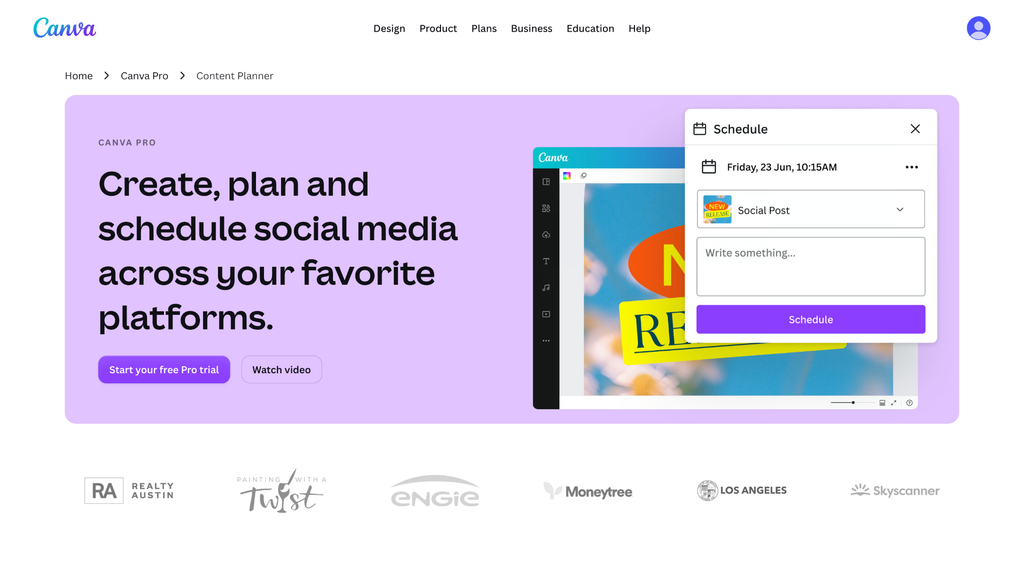
If you need ten Instagram stories, three LinkedIn carousels, and a YouTube thumbnail before lunch, Canva is built specifically for that level of creative output.
Adobe Express serves as a strong secondary tool for content creators who value generative AI and stock depth. It pairs straightforward template editing with Adobe Firefly AI, allowing you to generate custom background images from text prompts or remove background elements in a single click.
It also provides access to over 200 million Adobe Stock photos, graphics, and video clips on its Premium plan. For teams already using Photoshop or Illustrator, Adobe Express lets you pull brand assets directly from Creative Cloud Libraries without manual downloads.
Test 4 Verdict: Canva wins for ongoing daily content creation. Its template library and social scheduling tools make high-volume marketing frictionless.
Pricing, vector exports, and asset ownership
Before committing to a platform, it pays to look at how each service handles pricing tiers, vector exports, and commercial licensing rights.
| Pricing & Value Specs | Design.com | Canva | Adobe Express |
| Free Tier Features | Full vector exports (SVG, EPS), high-res downloads, basic brand preview | Standard PNG/JPG exports, access to free template library | Basic tools, standard templates, single-click quick actions |
| Paid Starting Price | Starter from $3/mo (billed annually) or $9/mo (monthly) | Pro from $18/mo (or $15/mo billed annually) | Premium from $9.99/mo per user |
| Vector Export Licensing | Included on all tiers (Free and Paid) | Locked behind Pro plan ($18/mo) | Locked behind Premium plan ($9.99/mo) |
| Commercial Trademarking | Unique AI vector mark ownership included in packs | Restricted if using non-exclusive stock elements | Restricted if using non-exclusive stock elements |
- Design.com provides high-resolution vector downloads (SVG, EPS, PNG) directly on its free plan. Its paid tiers include full business card suites, social templates, and automated website builders, starting at $3 per month, billed annually.
- Canva offers a generous free plan, but locks scalable vector SVG exports behind its Pro plan ($18/month or $15/month annually). If you try to print a free PNG logo on a storefront sign or merchandise, you risk blurry, pixelated edges.
- Adobe Express features a solid free plan, with its Premium tier priced at $9.99/month. The Premium plan unlocks 250 Firefly generative AI credits, full access to Adobe Stock, and saved Brand Kits.
Which tool fits your launch strategy?
- Choose Design.com if: You are on Day 1 of a business launch and need an automated system to handle logo generation, AI chat editing, and brand kit expansion without manual design work. It delivers print-ready vector files, brand guidelines, business cards, and a matching website in minutes.
- Choose Canva if: You already have an established logo and need a daily content engine with high-volume social media templates, video editing tools, and built-in post scheduling.
- Choose Adobe Express if: You want a daily content-creation hub powered by commercially safe Firefly AI image generation, single-click background removal tools, and direct integration with Creative Cloud assets.
Final verdict: Why Design.com is best for launching a business
Launching a business requires an instant visual identity, making an automated brand system the most practical solution for new founders. Converting a simple brief into custom logo concepts, brand guidelines, and free vector exports such as SVG and EPS eliminates the delays and complexity of traditional design processes.
The good news is, you do not need an expensive agency or weeks of software training to look professional. Head over to Design.com, enter your business details, and instantly generate your complete brand kit, from print-ready business cards and letterheads to matching social media graphics and website.
With your visual identity fully secured and print-ready files in hand, you can bypass the design stress entirely and step into the market with complete confidence.
FAQs in Design.com vs Canva vs Adobe
Which platform is the cheapest for launching a business?
Design.com offers the highest initial value for brand launches by providing free vector downloads and low-cost upfront branding packages. For ongoing marketing, Adobe Express Premium ($9.99/month) undercuts Canva Pro ($18/month or $15/month billed annually) while providing Firefly AI tools and Adobe Stock assets.
What is the best free logo maker in 2026?
Design.com offers the most practical free plan for business owners because it includes high-resolution downloads and scalable vector files (SVG/EPS) at no cost. Competitors like Canva, Adobe Express, and Looka restrict vector file downloads or transparent PNG exports to their paid subscription tiers.
Is Design.com better than Canva for creating logos?
Yes, Design.com outperforms Canva specifically for logo creation. Design.com builds tailored logo concepts directly from a brand brief and instantly generates an automated brand kit around your choice. Canva relies primarily on static stock templates, which carry trademark limitations and require manual layout work to build matching collateral.
Do I get true SVG vector files for printing on Design.com?
Yes. Design.com includes scalable vector files (SVG and EPS) on all plans. Having true vector files ensures your logo can be scaled up to fit storefront signs, apparel, or billboards without pixelating or losing edge sharpness.
Do I need design experience to use Design.com?
No design experience is required. Design.com features a guided AI wizard that automatically handles typography pairing, color harmony, and layout rules. Its chat-based AI editor lets you request changes with simple text prompts.
Can I build a website using Design.com?
Yes. Design.com automatically generates a matching starter website alongside your logo, business cards, and social media kits, allowing you to establish your online brand presence in a single workflow.
Read more on design here:
- Design.com vs Canva: The Official Logo Maker Test in 2026
- The Complete Beginner’s Guide to Website Builders
- Traditional vs. Digital Business Cards
Hannah Suroy suroy brings clarity to complex topics across entertainment, business, and creative industries. She specializes in translating industry trends and innovations into engaging content that helps readers understand the creative process behind the work they love.