Design.com vs Canva: The Official Logo Maker Test in 2026
Picking a logo maker feels simple until you actually sit down and use one. The options can look identical on a product page, but the real differences only show up once you type in a business name and see what comes back. That gap is exactly what this article is built around.
Design.com and Canva are two of the most-compared logo makers, so we tested them both against the same brief rather than just listing features. The goal was to see which one actually gets you to a finished, usable logo with less effort.
Below is a full breakdown of what each logo maker generated, how editing compared, and which one came out ahead for the logo task specifically.
The short answer
For the specific task of generating and refining a logo, Design.com’s tool produced more usable options faster and simplified editing through its AI chat editor. Canva’s logo maker is serviceable but clearly built as one small piece of a much larger platform rather than a dedicated tool.
Quick feature comparison
| Feature | Design.com | Canva |
| Generation speed | Seconds, from a name and a few keywords | A few minutes, more manual template browsing |
| Initial options returned | Thousands of logo concepts per brief | A curated set of matching templates |
| Editing method | AI chat editor plus manual controls | Manual drag and drop editor |
| File formats | SVG, EPS, PDF, PNG, JPG, GIF, MP4, icon only, transparent background | Standard image formats, vector on paid plans |
| Cost to export | Free tier includes high-res and vector downloads | Some exports require a paid plan |
What we actually tested
We used a fictional flower shop called Velvet Fern Florals for the brief. It was kept deliberately loose, just the business name, industry, and some related keywords, to see how each tool interpreted it without extra hand-holding.
From there, we paid attention to three things:
- How fast each tool returned the first result
- How close that first batch already felt to something usable
- How much manual cleanup did it take to get from the first draft to the finished logo
The first result
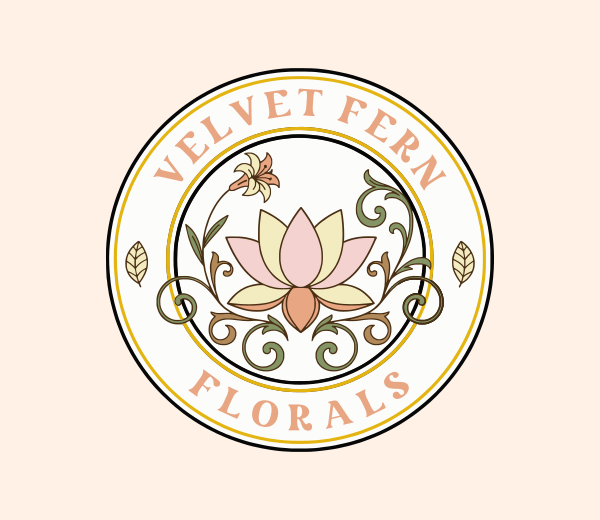
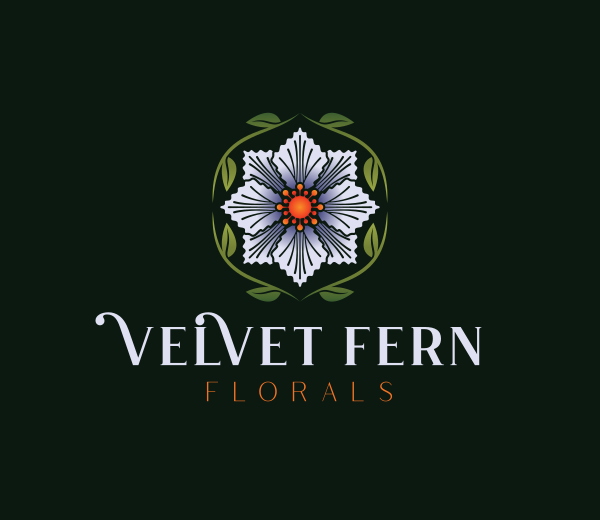
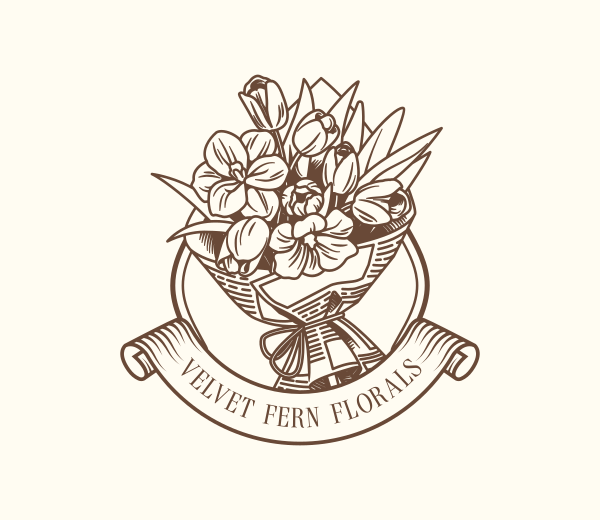
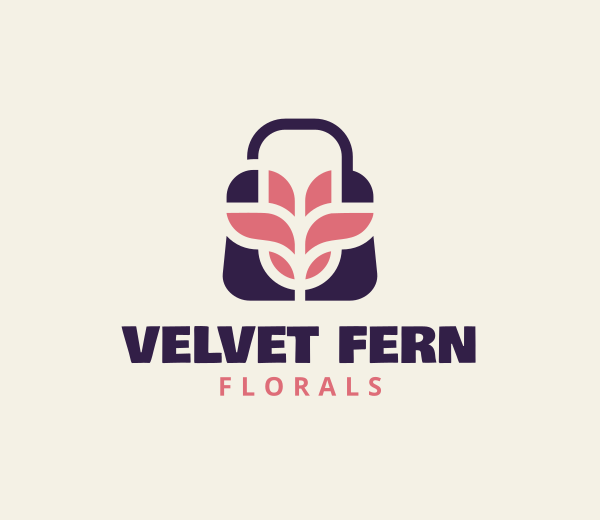
Building the Velvet Fern Florals logo in Design.com felt like filling out a short form. We entered the business name, told it we needed a logo for a flower shop, and added a few keywords tied to the brand. Within seconds, the platform returned over 10,000 logo options to choose from and refine.
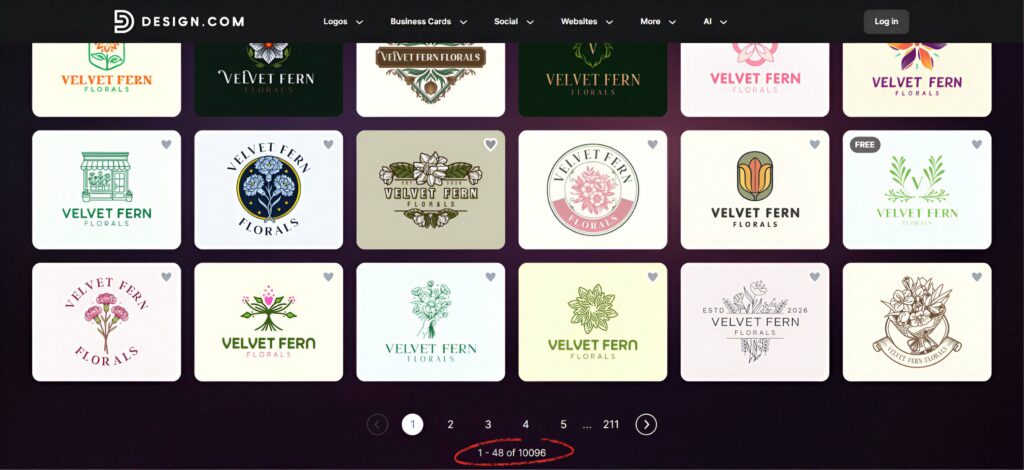
From that batch, we shortlisted a handful of our favorites to look at more closely:
Canva’s logo maker starts you closer to a blank canvas. There’s a template library to lean on, but you’re doing more of the visual decision-making yourself.
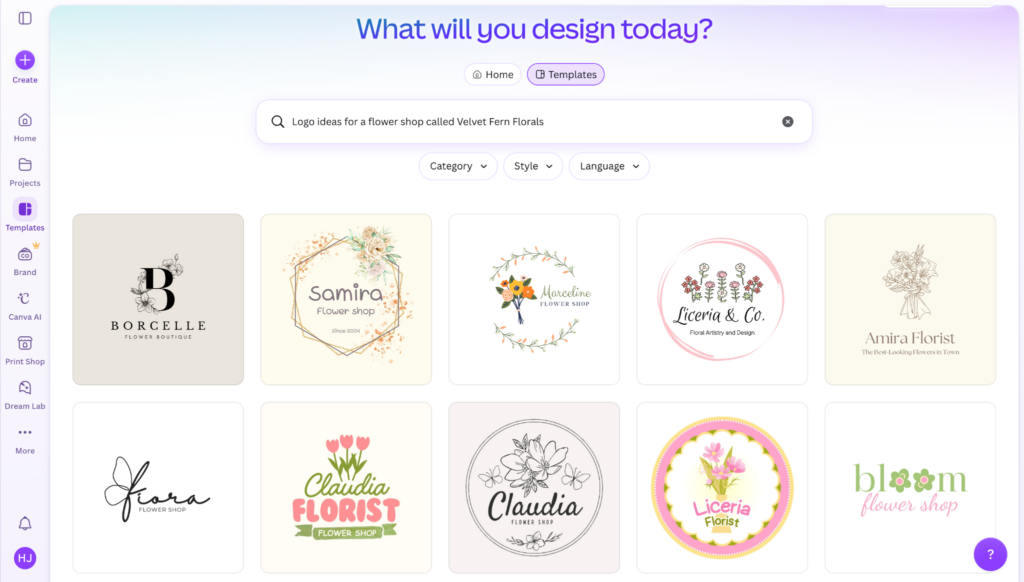
From that library, we created two logos that best matched the brief:
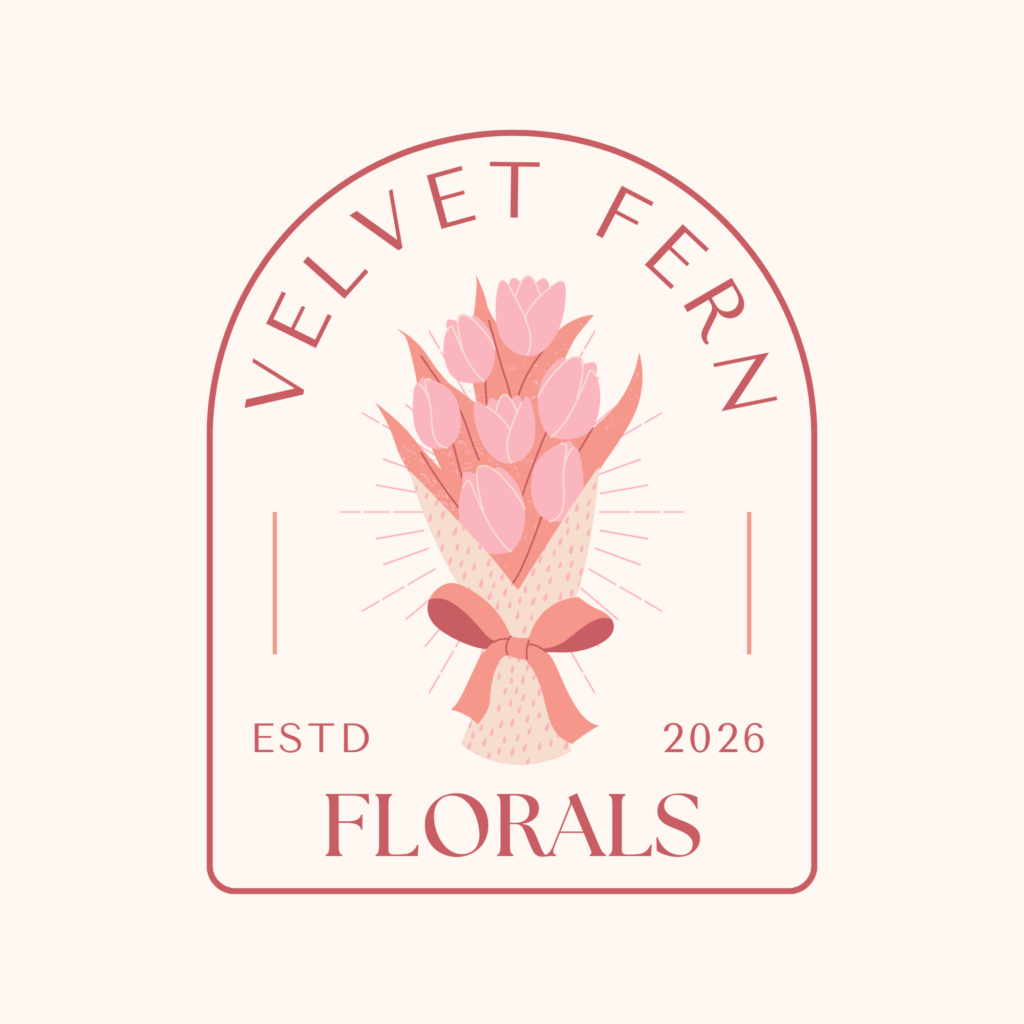
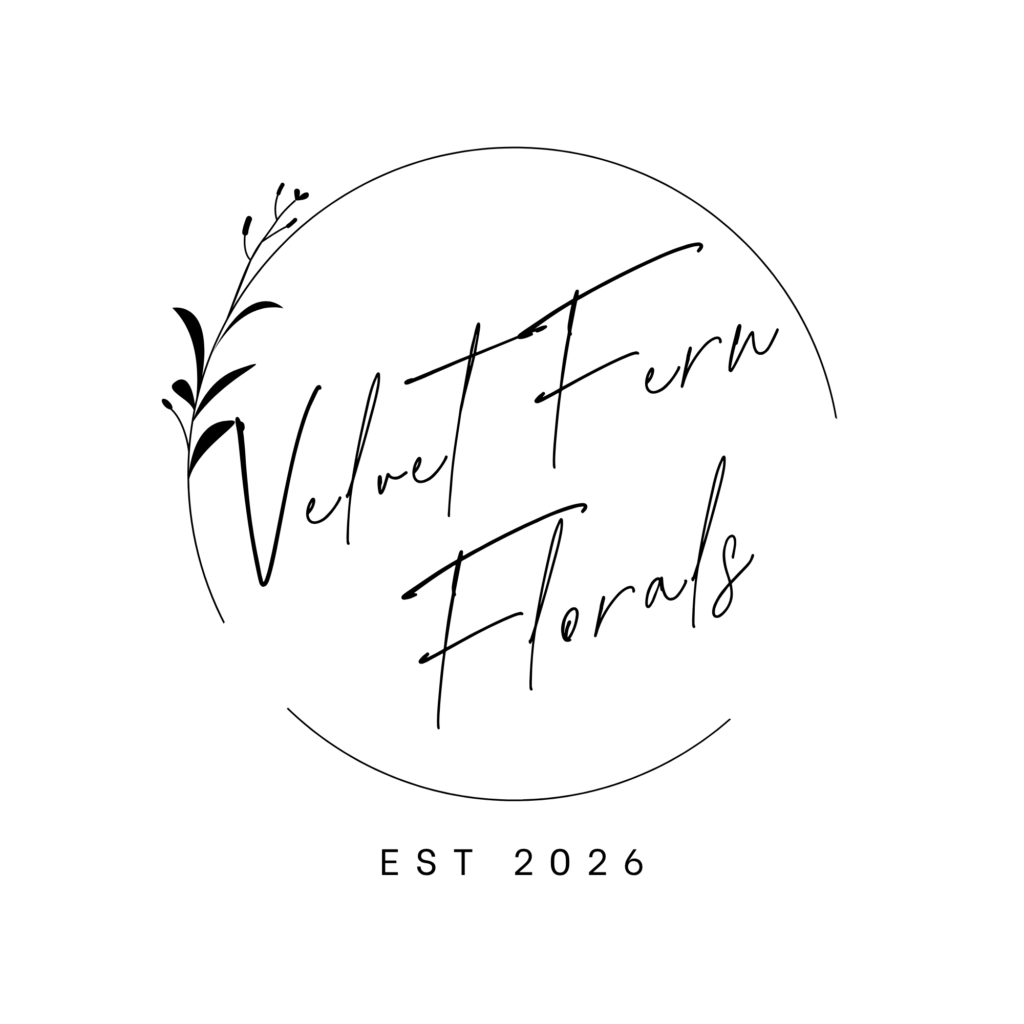
If you enjoy design work, Canva’s flexibility can be a plus. If you just want a finished logo, it adds a few extra steps.
Winner for this round: Design.com, since it returned a large batch of ready-to-use logos within seconds that require little to no editing at all. Canva, on the other hand, needed more manual digging to reach a comparable starting point.
Refining the logo and how easy it is to get there
Once we had a base logo, the real test was how easy it was to personalize it for our business. This is also where a true beginner’s experience matters most, since most people don’t stop at the first draft.
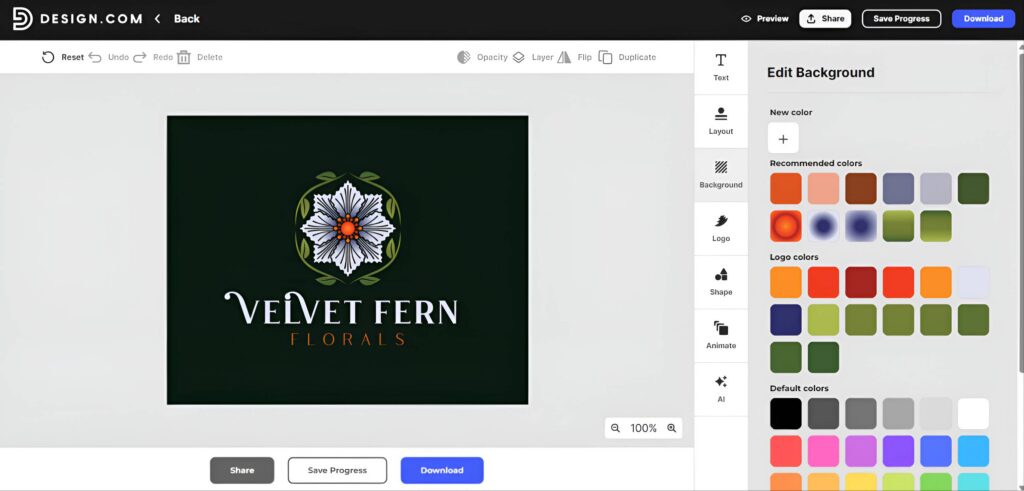
Design.com’s AI chat editor lets us describe changes in plain language instead of hunting through menus to find the right setting.
For the Velvet Fern Florals logo, we typed prompts like “make the flower icon more symmetrical,” “change the leaf wreath to a lighter green,” and “soften the background so the flower stands out more.” Each request updated the design directly, and we could keep refining with another prompt if the result wasn’t quite right.
Canva’s editing process worked differently. Getting to the same kind of refined result meant working through its standard design panel, adjusting fonts, colors, and icons manually one at a time.
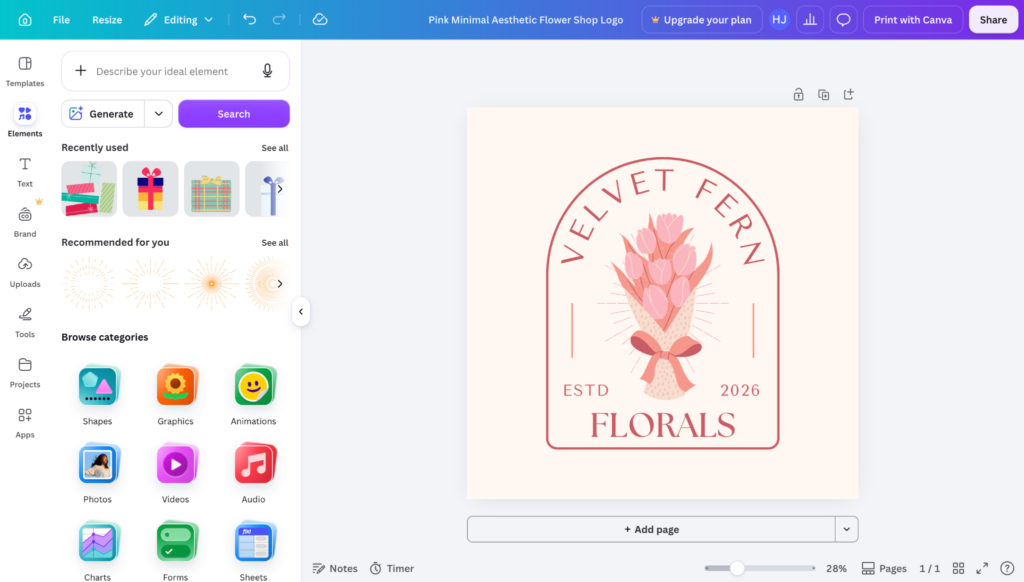
That’s familiar territory if you’ve used design software before, but the open canvas and the number of options on screen can slow a user down, especially when trying to swap a single icon without disturbing the rest of the layout.
Winner for this round: Design.com, since describing a change in plain language got us to a finished logo faster than manually adjusting each element, and made the process noticeably easier for a first-time user.
Pricing for the logo itself
We looked specifically at what it costs to walk away with a usable logo file, not the platform as a whole.
Design.com
- Free tier. Includes a high-res and vector logo download with no watermark, plus access to the free website builder, digital business card maker, and link in bio tool.
- Starter. $3/month (billed annually), adding more of the 50-plus design tools.
- Value. $4/month (billed annually), adding the free website builder as a full site rather than a single page.
- Premium. $5/month (billed annually), adding digital business cards and the link in bio page on top of everything else.
Canva
- Free. No cost, one brand kit limited to three colors, 5GB of storage, and a capped AI allowance, though a large share of premium templates and elements sit behind Pro.
- Pro. $180/year for one person, unlocking the full 3.6 million plus template library, premium photos and graphics, and 5 Brand Kits.
- Business. $250/year per person, adding team collaboration tools, 100 Brand Kits with approvals, and a higher AI allowance, aimed at teams rather than a single logo.
For the narrow task of just getting a usable logo, Design.com’s free tier goes further before asking for a card, since Canva’s premium templates and export options more often nudge a logo project toward its Pro plan.
Winner for this round: Design.com, since it gives you a finished, exportable logo without paying anything.
What you get after the logo is done
A logo rarely stays alone for long, so we looked at what each platform hands you right after. Design.com paired the Velvet Fern Florals logo with a matching free website builder, a digital business card, a link in bio page, and other marketing materials, all of which automatically applied the same colors.
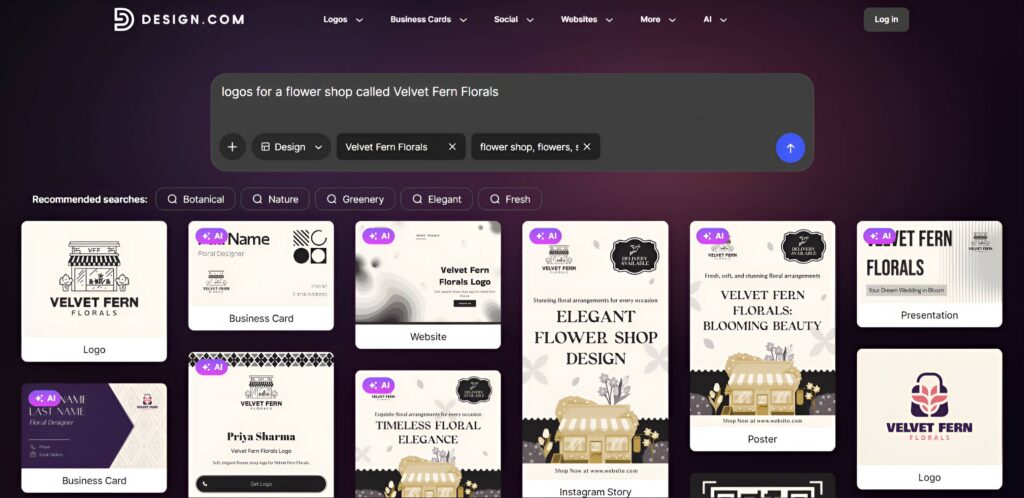
Canva can build all of that too, but doing it well often requires upgrading to its paid tier and manually applying your brand colors to each new template. Design.com’s automatic matching meant we had a small starter brand kit within minutes of finishing the logo.
Winner for this round: Design.com, since it turns one finished logo into a small, ready-to-publish brand kit at no extra cost.
Where each tool struggles
Neither tool is perfect for every kind of user, so here’s where each one shows its limits.
Design.com
- Web-based only right now, so there’s no dedicated desktop or mobile app, though the browser experience held up fine across the devices we tested.
- While lighter on general-purpose design tools beyond branding, Design.com’s AI image generator can still be a useful creative tool.
Canva
- No AI chat style editor for logos specifically, so refining a design still means manually adjusting fonts, colors, and icons one at a time.
- Its logo maker feels like a smaller feature bolted onto a much larger platform, rather than a tool built around logos from the ground up.
- A meaningful share of templates, stock photos, and brand kit features is behind the Pro plan, so achieving a polished result on the free tier takes more effort.
The verdict on Design.com vs. Canva
Across every part of this test, from the first generated batch to the final export, Design.com’s logo maker outperformed Canva’s specifically for the logo task. Canva still holds up if you want your logo to live within a larger design workflow, but as a dedicated logo maker, it asks more of you to achieve the same result.
Give Design.com a try for your next logo, and once you’re in, its other tools are worth exploring too, including the free website builder, posters, flyers, social media templates, business cards, and apparel, all built to match your new logo automatically.
Remember, your logo sets the tone for everything else your brand does, so it’s worth picking the logo maker that gets it right the first time.
FAQs
Can you edit a logo using AI chat in Design.com?
Yes, Design.com includes an AI chat editor that lets you describe a change in plain language, like asking for a bolder font or a different icon, instead of manually hunting through editing menus. The tool applies the change directly, and you can keep prompting it again if the result isn’t quite right. This made it especially useful for someone with little to no design background in our test.
Is Canva’s logo maker good enough on its own?
It’s usable and produces a fine result, but it’s built as a single feature within a much larger design platform rather than as a tool made specifically for logos. That means more manual work in its standard design panel to achieve a polished result, since there’s no AI chat editor specifically for logos.
Which tool, Design.com vs. Canva, is faster for a first logo draft?
Design.com was noticeably faster in our test, returning a large set of initial concepts within seconds compared to Canva’s smaller, more manual starting point. Canva required more browsing through its template library before we found something close to what we wanted. That gap became even more noticeable once we factored in the extra time Canva took to refine a design into a finished product.
Do I need design experience to use either logo maker?
No, but Design.com’s guided process and AI chat editor make it easier for someone with zero design background to reach a finished result without prior experience. Canva is still approachable, but its open canvas and larger set of tools can slow down a true beginner. Someone who has used design software before will likely feel comfortable in either tool.
Read more on logo design here:
- Best AI Logo Maker for Original Designs in 2026
- What Makes a Good Logo? 10 Principles of Effective Logo Design
- AI Logo Design vs Traditional Logo Design: Which Is Better for Your Brand?
Hannah Suroy suroy brings clarity to complex topics across entertainment, business, and creative industries. She specializes in translating industry trends and innovations into engaging content that helps readers understand the creative process behind the work they love.