How to Create a Custom QR Code
Highlights
- Learn how to paste any destination link into a generator to build a custom QR code in 5 simple steps.
- Match your brand identity by customizing colors, shapes, frames, and call-to-action (CTA) prompts.
- Select static QR codes for fixed web pages or dynamic QR codes for editable campaign destinations.
- Prevent scan failures by using dark-on-light color contrast, proper quiet zone spacing, and correct print dimensions.
- Integrate your completed QR code directly into graphic design templates for flyers, menus, and business cards.
Connecting physical marketing materials to your digital presence is essential for driving customer action. Forcing people to type long web addresses into their phones manually creates friction and leads to lost traffic. A QR code solves this problem instantly with a single camera scan.
Custom QR codes styled with your brand’s colors and frames build immediate trust and generate significantly higher scan rates than basic black-and-white codes. They transform static print assets into interactive digital touchpoints.
This guide covers how to turn any link into a custom QR code using a QR code generator, optimize it for flawless scannability, and pair it with a logo maker to design professional marketing materials.
What is a QR code for a link?
A QR code for a link is a scannable, two-dimensional barcode that stores a web address. When a smartphone camera scans the code, it automatically prompts the user to open the destination URL.
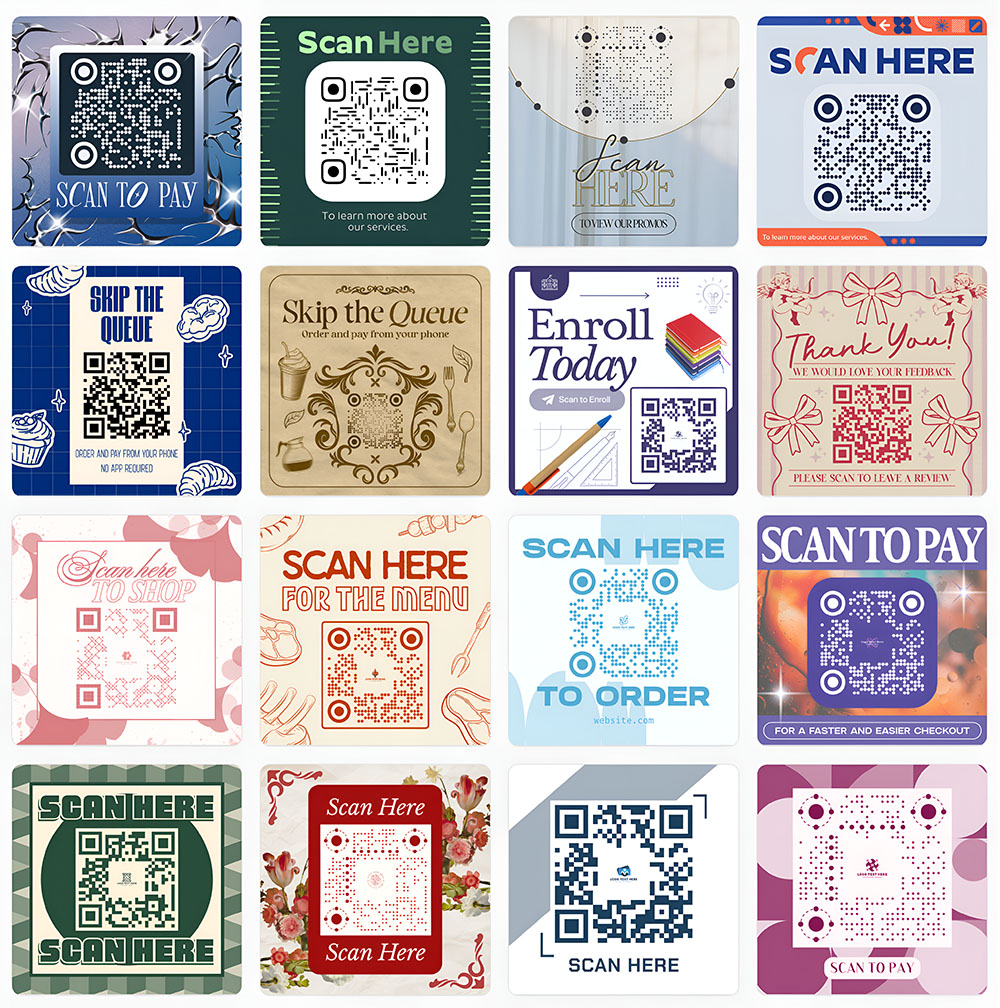
Here are a few examples of how QR codes can look with custom frames and calls-to-action (CTA):
Unlike traditional barcodes that only hold basic numbers, QR codes store data both vertically and horizontally. This matrix structure lets them pack full links into a compact square that fits easily on physical materials.
Why use QR codes?
- Eliminate friction: Users open your page in seconds without typing long, prone-to-error URLs.
- Boost engagement: Custom QR codes draw eye-level attention on flyers, packaging, and business cards.
- Bridge offline to online: Physical touchpoints like posters or table tents instantly become measurable digital gateways.
- Save print costs: Linking to digital menus, user guides, or event schedules lets you update information online without reprinting collateral.
How to create a custom QR code in 5 simple steps
Creating a high-performing QR code involves an end-to-end process that takes you from selecting a link to the final print export.
Step 1: Choose and prepare your destination link
Before generating your code, select and prepare the exact web address you want people to visit. Common destinations include:
- Product landing pages or promotional discount offers
- Digital menus or online ordering systems
- vCards or contact details for business cards
- Social media profiles or link-in-bio trees
- Event registration forms or ticketing pages
Pro Tip: Always verify that your target page loads quickly and is 100% mobile-friendly. Because almost every scan occurs on a mobile phone, sending users to a desktop-only page creates immediate drop-off.
Step 2: Input your link into a QR code generator
Open a reliable QR code generator and select the URL/Link option from the content menu. Paste your full web address into the destination field, making sure to include “https://”.
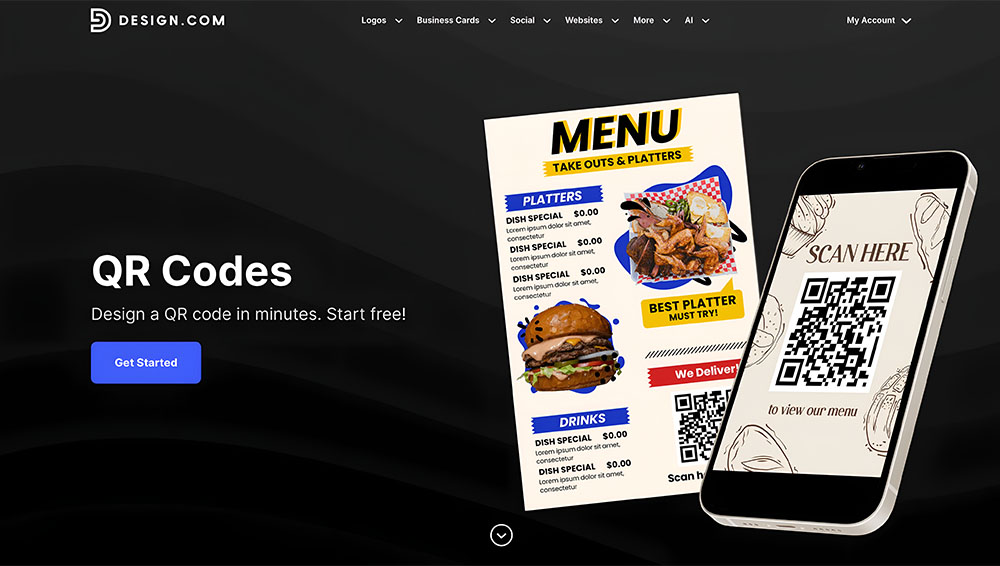
Platforms like Design.com feature a built-in QR code generator that lets you enter your link and immediately start designing related marketing materials.
Step 3: Customize your QR code to match your brand
Instead of settling for a generic black-and-white square, customize your code to complement your brand identity:
- Brand colors: Customize the foreground (dots/pixels) and background colors to match your brand palette.
- Patterns and styles: Choose distinct shapes for the inner pixels and the three outer corner eyes.
- Frames and CTAs: Place your QR code inside a decorative frame with a clear CTA, such as “Scan to View Menu” or “Scan for 10% Off.”
Here is a sample of what the customization editor looks like on Design.com:
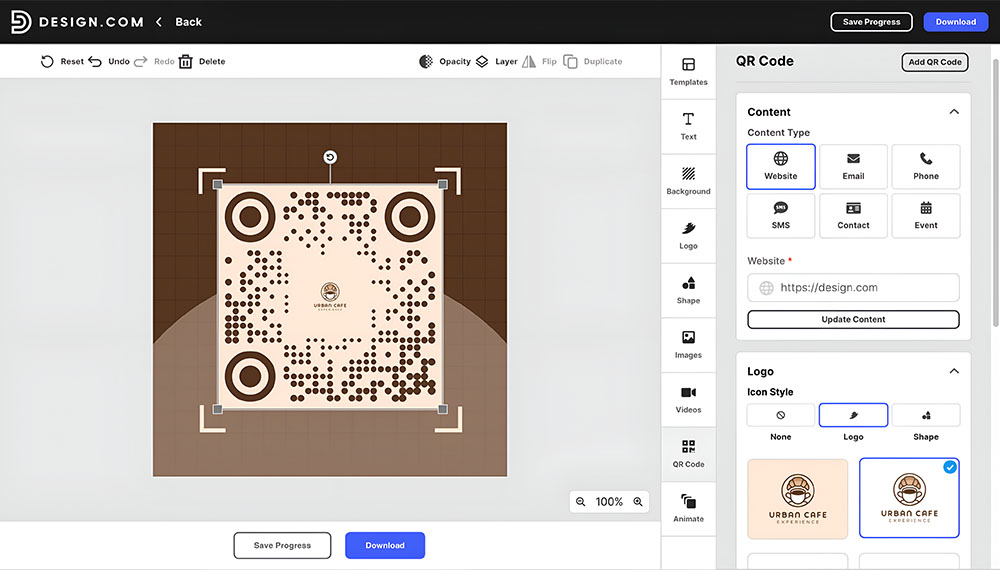
You can edit it further by tweaking individual layout options, adding surrounding design templates, or adjusting element positioning directly on the visual canvas.
Step 4: Embed the code directly into marketing assets
Place your completed code directly onto your print or digital collateral. With Design.com, your QR code does not have to live in isolation.
You can instantly place your generated code into pre-designed layout templates for business cards, flyers, posters, table tents, packaging labels, and social media graphics.
Step 5: Test and export in the right format
Run test scans across multiple phone camera apps to ensure the code works reliably. Once verified, download your design in the right file format:
- PNG or JPG: Ideal for digital graphics, email signatures, websites, and display screens.
- Vector Formats (SVG or PDF): Essential for physical printing, large banners, and commercial packaging to prevent pixelation and maintain razor-sharp edges.
Design principles for maximum scannability
A beautiful QR code is useless if smartphone cameras fail to read it. To balance visual aesthetics with technical reliability, follow these fundamental design principles:
1. Maintain high color contrast
Camera sensors rely on contrast to differentiate foreground pixels from the background color.
- Do: Use a dark foreground color on a light background (e.g., dark navy pixels on a white background).
- Don’t: Avoid light foregrounds on dark backgrounds (inverted codes), as many native camera apps struggle to read them. Avoid low-contrast pairings like light gray on white or yellow on cream.
2. Preserve the “quiet zone”
The quiet zone is the blank border padding surrounding all four sides of the QR code.
Take, for example, our QR code sample from above:
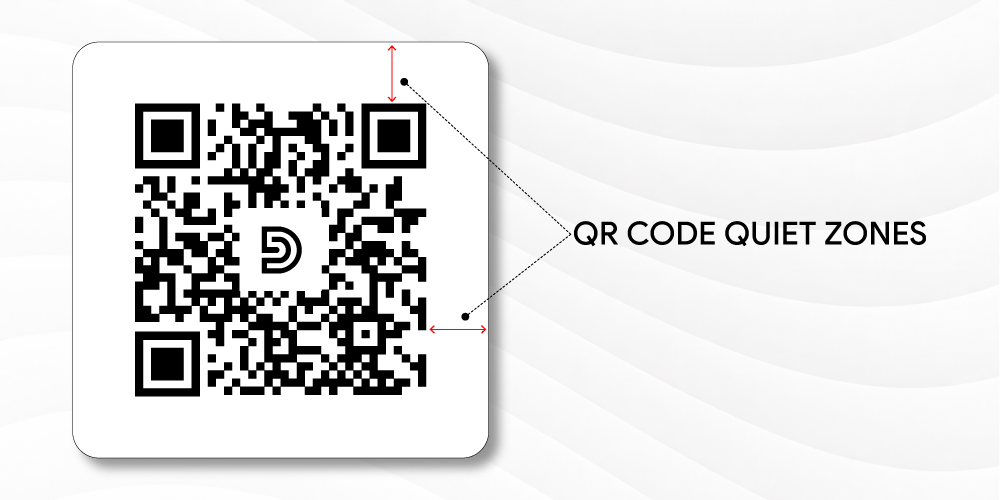
Notice how it has a sizable quiet zone surrounding the entire pattern. This space tells the smartphone scanner where the code starts and ends.
3. Follow print sizing and distance guidelines
If a QR code is printed too small, a camera lens will not be able to resolve the individual data points.
Here are the recommended dimensions for different print materials based on the ISO/IEC 18004 Standard:
| Application | Typical Viewing Distance | Recommended Minimum QR Size |
| Business cards and tags | 6 to 12 inches | 0.8″ × 0.8″ (2 × 2 cm) |
| Flyers and table tents | 1 to 2 feet | 1.0″ × 1.0″ (2.5 × 2.5 cm) |
| Posters and signage | 3 to 5 feet | 3.0″ × 3.0″ (7.5 × 7.5 cm) |
| Billboards and large banners | 20+ feet | Follow the 10:1 Distance Ratio Rule |
The 10:1 Distance Ratio Rule: As a general guideline, divide the estimated scanning distance by 10 to determine your QR code’s width. For example, a poster meant to be scanned from 10 feet away should feature a QR code that is at least 1 foot wide.
4. Keep proportions square
Never stretch, compress, or warp your QR code out of proportion when adding it to your design layout. Doing so distorts the internal positioning matrix and renders the code unscannable.
Visual guide: Bad vs. better QR code practices
| Mistake (Bad Practice) | Solution (Better Practice) | Why It Matters |
| Low Contrast: Light green pixels on a white background. | High Contrast: Dark forest green pixels on a white background. | Cameras need sharp contrast to read pixel data quickly. |
| No Frame or Context: A plain QR code floating in space. | Clear CTA: Code framed with “Scan for Free Shipping.” | Users need a compelling reason to open their camera and scan. |
| Crowded Margins: Graphics touching the edges of the code. | Adequate Quiet Zone: 0.25-inch blank border padding. | Prevents background clutter from interfering with sensor reading. |
| Unresponsive Target: Linking to a non-mobile desktop site. | Mobile Destination: Fast-loading, mobile-optimized landing page. | Provides a seamless user experience once the scan completes. |
Static vs. dynamic QR codes: Which should you use?
When creating QR codes, it helps to understand the core technical differences between Static and Dynamic codes:
Static QR codes
Static QR codes encode your destination URL directly into the visual pixel grid.
- Pros: Permanent, no ongoing subscription needed, never expires.
- Cons: The destination link cannot be edited after the code is generated or printed. Storing long, complex URLs creates dense, crowded pixel patterns that are harder to scan from a distance.
- Best Used For: Permanent web addresses, such as your primary homepage, brand social profiles, Wi-Fi credentials, or fixed contact information.
Dynamic QR codes
Dynamic QR codes link to a short intermediate URL that redirects the user to your destination page.
- Pros: You can update the final destination URL at any time without changing or reprinting the physical code. They also enable scan tracking (location, time, device type) and keep pixel patterns clean and simple.
- Cons: Requires host management or an active account service to maintain the redirect link.
- Best Used For: Marketing campaigns, seasonal promotions, event schedules, restaurant menus, or any printed material where destination content might change over time.
Real-world use cases and recommended placements
Integrating custom QR codes directly into your broader design collateral unlocks seamless interactions across various industries:
- Business cards and networking: Place a small QR code on the back of your business card, portfolio, or LinkedIn profile so contacts can save your details instantly.
- Restaurants and Hospitality: Print custom QR codes on menus, table tents, coasters, or counter displays. A simple frame reading “Scan to View Menu” or “Scan to Pay” reduces wait times and printing costs.
- Events, flyers, and posters: Drive registrations for webinars, concerts, or local pop-ups. Pair an eye-catching poster design with a high-contrast QR code pointing directly to your checkout page.
- Product packaging and retail: Add QR codes to product boxes, hangtags, or labels directing customers to video user guides, sustainability stories, or loyalty reorder pages.
- Real estate and yard signs: Include QR codes on property signs so passing prospects can instantly launch a 3D virtual tour or download property spec sheets directly on their phones.
What happens after the scan? Optimizing the destination experience
Generating a scannable code is only half the battle. The user experience after the scan determines whether a visitor converts.
- Prioritize mobile page speed: Mobile users expect pages to load in under three seconds. Compress heavy images and streamline landing pages to prevent drop-off.
- Ensure message continuity: If your physical QR code frame says “Scan for 15% Off,” make sure the landing page headline immediately confirms that offer with a visible discount code or form.
- Minimize friction: Avoid placing multi-step pop-ups, lengthy forms, or forcing account creation immediately upon landing. Make the primary action obvious.
The ultimate pre-publish QR code checklist
Before sending your designs to production or publishing them online, run through this verification checklist:
- URL accuracy: Is the destination link live, functioning over secure HTTPS, and free of typos?
- Mobile optimization: Does the target page render cleanly on mobile screens?
- Contrast check: Is the foreground color significantly darker than the background?
- Quiet zone padding: Is there adequate blank space surrounding the entire code?
- Size ratio: Is the physical print dimension large enough for the intended scanning distance?
- Frame and CTA: Does the design include a clear CTA that tells users why to scan?
- Multi-device test: Have you successfully scanned the code using both iOS and Android devices?
- Physical print proof: If printing, did you print a physical test sheet on standard paper to test the code in real-world lighting before committing to full production?
Start creating custom QR codes today
A customized QR code transforms passive physical marketing into active digital engagement. By combining sharp brand colors, a clear CTA, high contrast, and multi-device testing, you ensure your audience enjoys a seamless bridge to your online presence.
Ready to build your next campaign? Head over to Design.com to generate your custom QR code and design matching business cards, flyers, posters, and digital graphics today.
FAQs on QR code for any link
How do I create a QR code for a link?
Copy your target web address, paste it into Design.com’s QR Code Generator, customize the colors, visual style, and frame to match your brand, and download your finished file.
Can I turn any URL into a QR code?
Yes. You can turn any valid URL into a QR code, including website landing pages, Google Drive files, YouTube videos, digital PDF menus, app store links, and social media trees.
How do I create a custom QR code for free?
You can generate and customize static QR code URLs using online design tools like Design.com. Choose your preferred colors, patterns, and embedded marketing templates at no extra cost.
How do I customize a QR code with colors and branding?
In the design editor, select custom foreground and background colors that align with your brand kit, adjust module dot shapes, and place your code inside a styled frame with a call-to-action.
What is the best QR code generator for a website link?
Design.com is an excellent option because it combines custom QR code generation with a full suite of graphic design tools, allowing you to design marketing assets like flyers and business cards alongside your QR codes in a single, seamless workflow.
How do I make sure my QR code scans correctly?
Maintain strong color contrast (dark pixels on a light background), preserve a clear quiet zone around the border, size the code appropriately for scanning distance, and perform physical test scans on both iOS and Android phones.
What size should a QR code be for printing?
For close-up items like business cards, aim for at least 0.8″ × 0.8″ (2 × 2 cm). For flyers and posters, use a minimum of 1″ × 1″, and apply the 10:1 scanning distance rule for larger signage.
Read more on design here:
- Traditional vs. Digital Business Cards
- What Makes a Good Logo? 10 Principles of Effective Logo Design
- The Complete Beginner’s Guide to Website Builders
Hannah Suroy suroy brings clarity to complex topics across entertainment, business, and creative industries. She specializes in translating industry trends and innovations into engaging content that helps readers understand the creative process behind the work they love.